
If you use Baicells SIM cards with the Baicells CloudCore, the secret keys for those SIMs live in the CloudCore. That is fine right up until the day you stand up your own packet core and need to move those SIMs onto it. To do that, you need three values for every SIM on your network: the IMSI, the Ki, and the OPC. The good news is that CloudCore will hand you all three in a single export. In this post I will show you exactly where that export lives. Once you have the file, your SIMs are ready to load into whatever core you are standing up: Rapid5GS, Druid, Magma, keyLTE, or any other LTE or 5G core that takes subscriber keys.
Two quick clarifications before we start. First, running Baicells radios does not, by itself, put your SIMs in the CloudCore; this post is about Baicells SIM cards, not Baicells eNBs. Second, if you bought Baicells SIMs but never used the CloudCore, you can still get the keys out this way: import the SIMs into BOSS first using the recharge codes that came with them, then run the export exactly as described below.
What IMSI, Ki, and OPC Actually Are
A quick primer before we click anything, because these three values are the whole ballgame when you move SIMs between cores:
- IMSI (International Mobile Subscriber Identity): the 15-digit number that identifies the SIM. It is built from a mobile country code, a mobile network code, and a subscriber number. Think of it as the SIM’s username.
- Ki (subscriber authentication key): a 128-bit secret key written to the SIM when it is manufactured. The SIM never transmits the Ki over the air. Instead, the SIM and the core each use their own copy of it to answer cryptographic challenges, and the device only attaches if the answers match. This is the password.
- OPC (operator key): the operator’s code (OP) pre-encrypted with that SIM’s Ki. It is a second secret that gets mixed into the authentication math alongside the Ki. Different SIM vendors hand you either an OP or an OPC, and they are not interchangeable. Baicells gives you the OPC, which is what Rapid5GS and Open5GS want anyway.
The practical takeaway: a SIM will only attach to a core that holds the exact same IMSI, Ki, and OPC that the SIM is carrying. Get one character wrong and the SIM will show up in your logs and fail authentication every single time.
Why Rapid5GS Needs These Values
Rapid5GS runs Open5GS under the hood, and every SIM you want on your network gets added as a subscriber record with exactly those three values. When you bought Baicells SIMs, you never typed any of this in. Baicells loaded the keys into the CloudCore for you at the factory, which is why everything just worked. Moving to your own core with Rapid5GS Pro means doing that same load yourself, and the export below is the source material.
Step 1: Log In to CloudCore
Head to cloudcore.baicells.com and sign in with your operator account.

Step 2: Click Over to BOSS
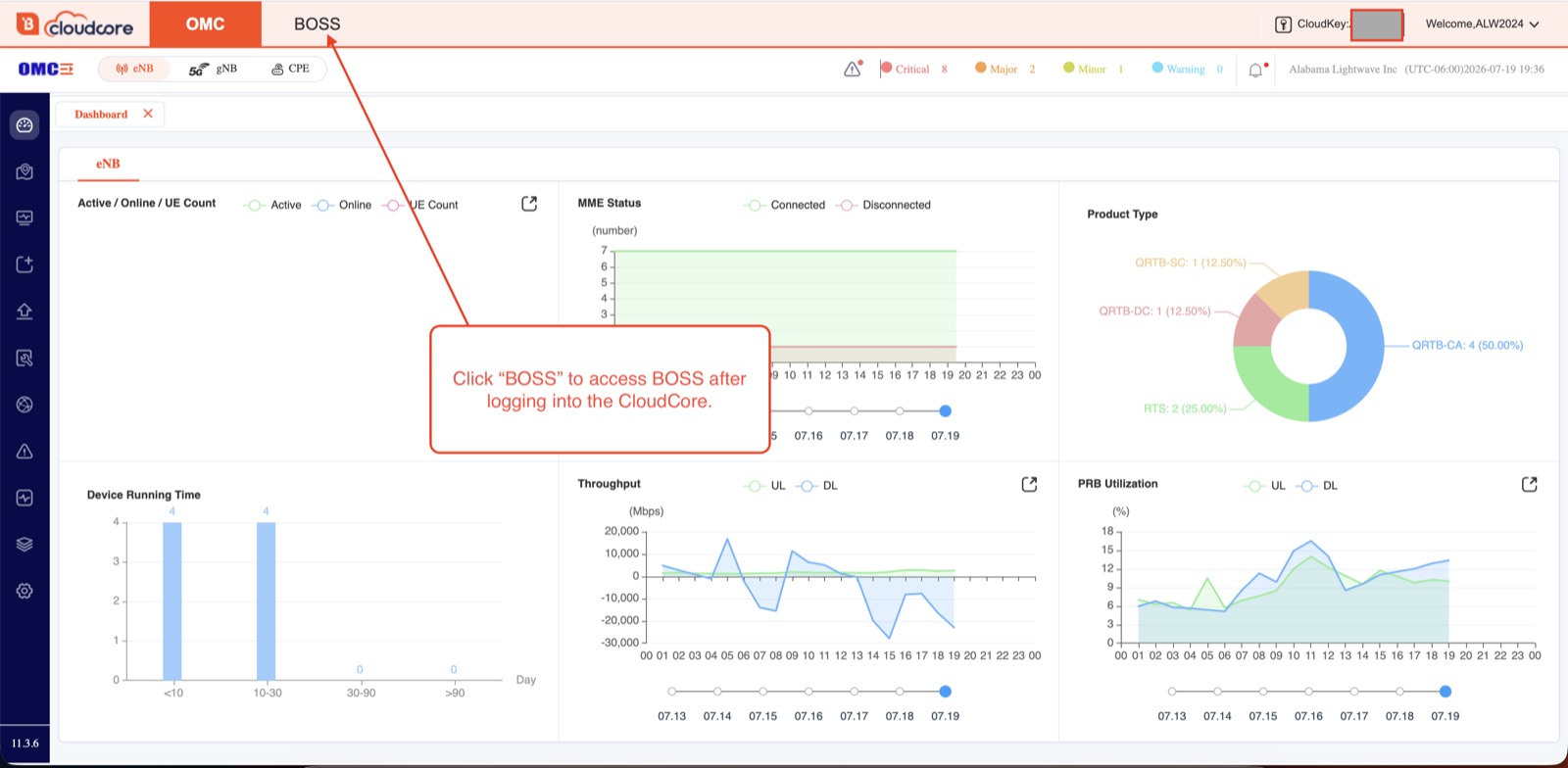
Once you are in, you will see two tabs in the top navigation: OMC and BOSS. OMC is where your radios live. BOSS (Business Operations Support System) is where Baicells keeps subscribers, service plans, and SIM inventory. Click BOSS.
Step 3: Network, Then SIM Card
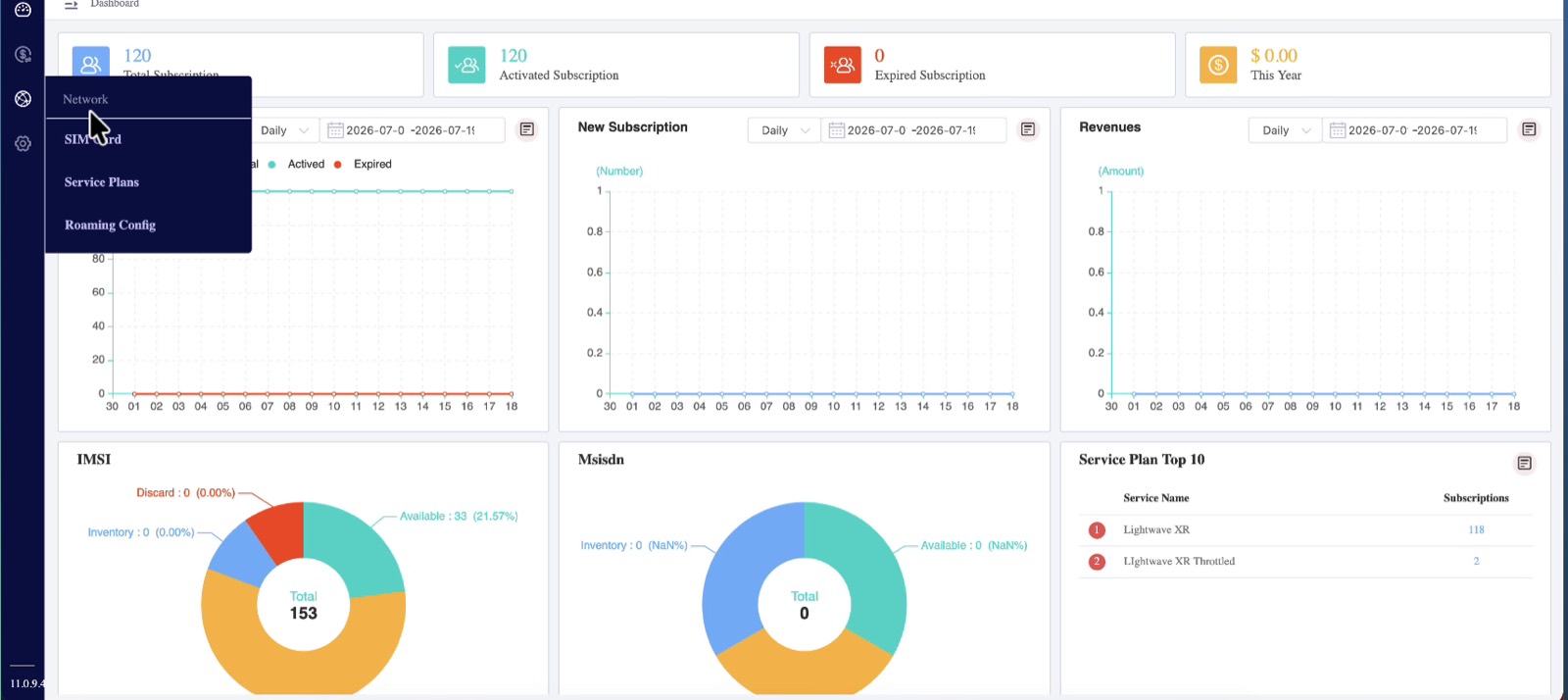
In the icon rail down the left edge of the BOSS screen, click the globe icon. A Network menu flies out with three options: SIM Card, Service Plans, and Roaming Config. Click SIM Card.
Step 4: Export the SIM List
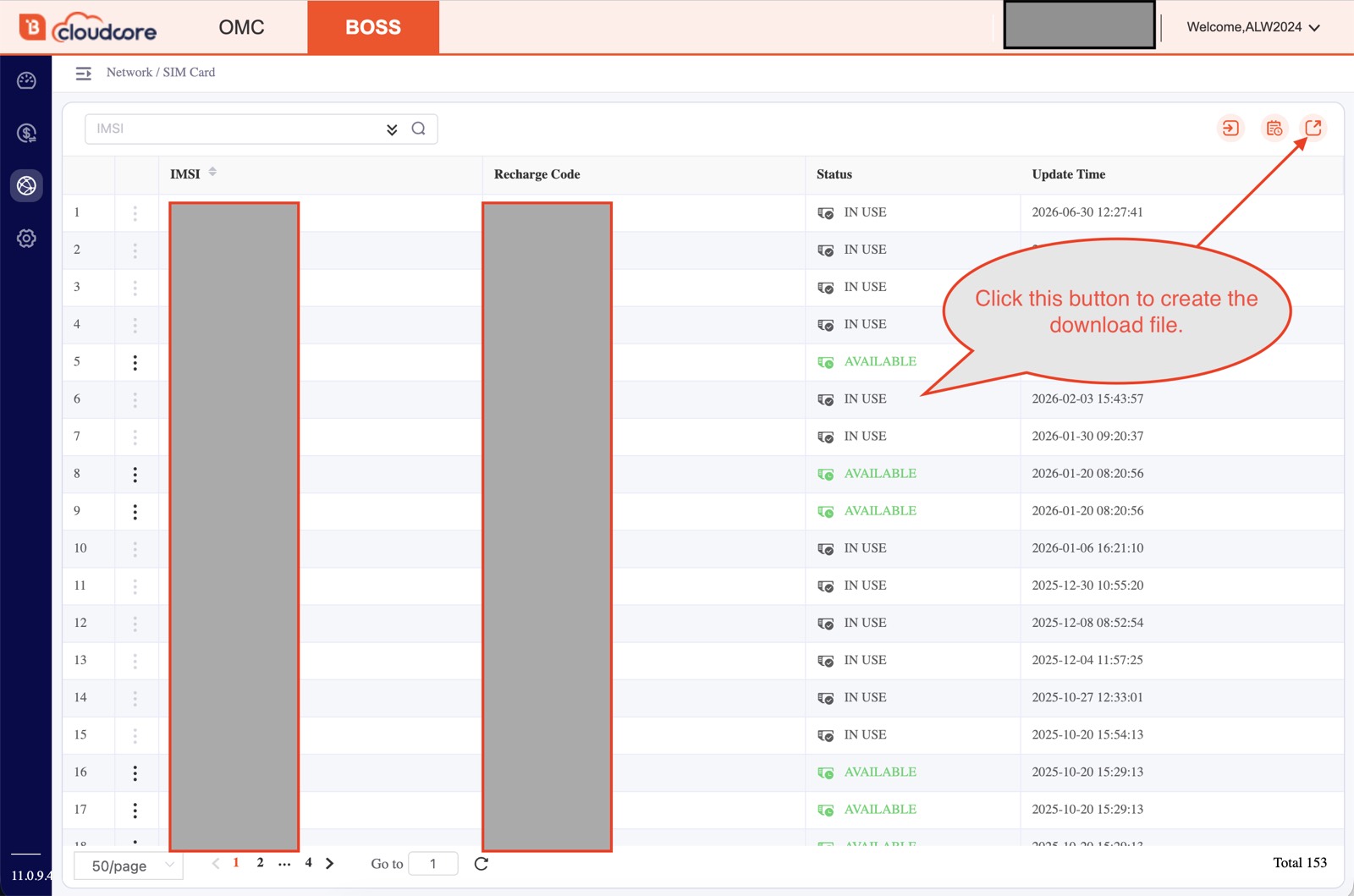
The SIM Card page shows every IMSI on your account. Look at the top right corner of the SIM table for the export icon, the little square with the arrow pointing out of it. Click it and CloudCore generates a CSV named something like IMSI_20260719194203, which your browser downloads. That one file is the entire point of this exercise.
Step 5: Open the File and Find KI and OPC
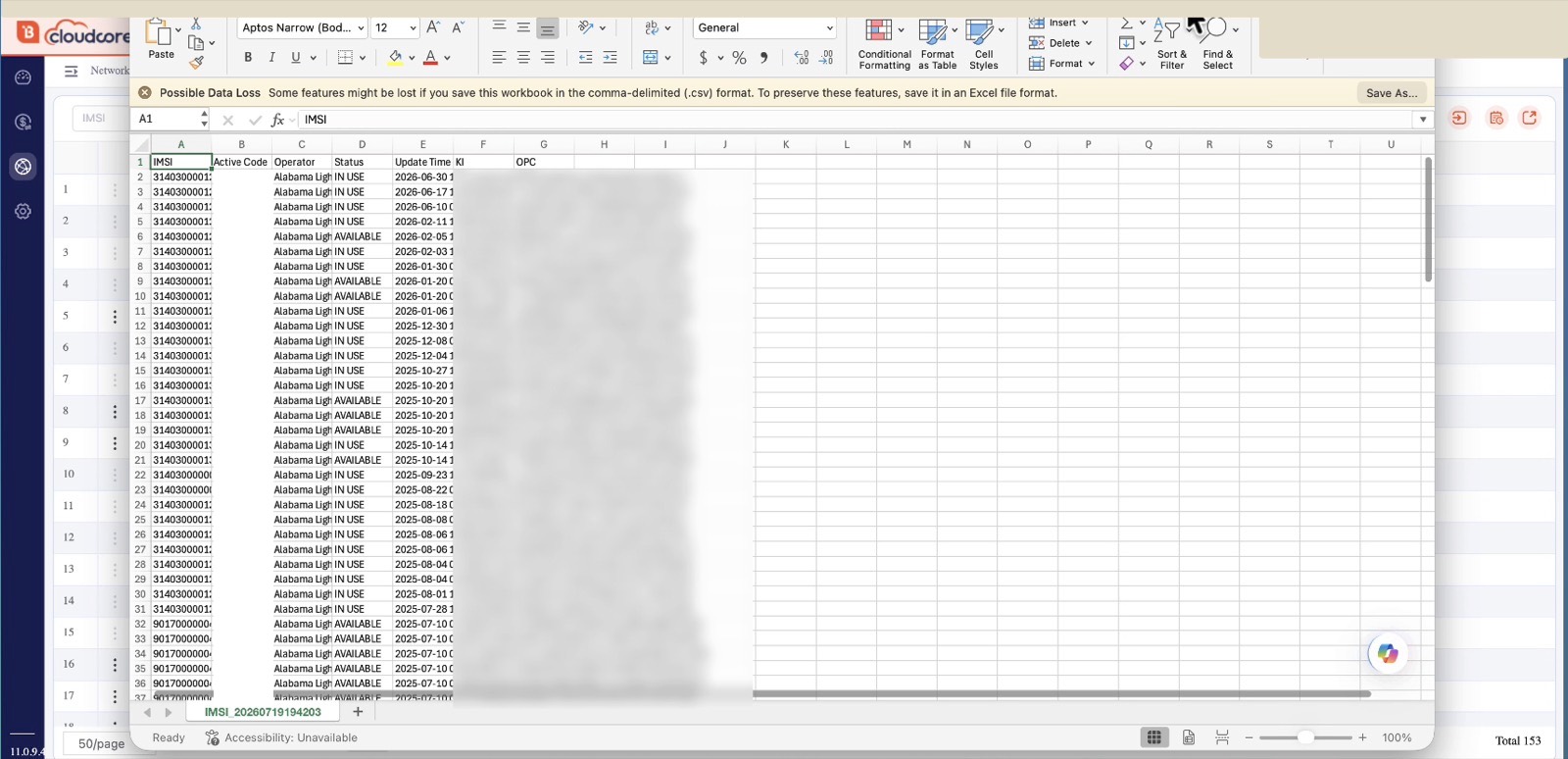
Open the download and you will see seven columns:
| Column | Field | What it is |
|---|---|---|
| A | IMSI | The SIM’s identity. This is what you key subscribers on. |
| B | Active Code | Baicells internal activation code. Not needed for your core. |
| C | Operator | Your operator name in CloudCore. |
| D | Status | IN USE or AVAILABLE. Handy for deciding which SIMs to migrate. |
| E | Update Time | Last change to the record. |
| F | KI | The authentication key. One of the two secrets you came for. |
| G | OPC | The operator key. The other secret. |
Two warnings about Excel before you touch anything:
- Excel loves to display a 15-digit IMSI as scientific notation, and if you re-save the file in that state it can write the mangled version back out. If you plan to edit the file, format the IMSI column as text first. Better yet, leave the CSV alone and work from a copy.
- Excel will nag you with a “Possible Data Loss” banner about the CSV format. Ignore the urge to convert it to .xlsx. Plain CSV is exactly what you want for feeding a core.
Load Them Into Your New Core
From here it is data entry, and it works the same no matter whose core you picked. Each SIM becomes a subscriber record: the IMSI identifies the subscriber, and the Ki and OPC from columns F and G go in as its authentication keys. That is true in Rapid5GS, Druid, Magma, keyLTE, and everything else built on the same standards. Do a handful, boot a CPE, and confirm it attaches before you burn an afternoon on the whole list. Once a couple of SIMs authenticate cleanly you know your values are mapping correctly and the rest is mechanical.
If you are running a Baicells 436Q fleet, this is the same subscriber data HaloB relies on, and it is the exact handoff that makes a CloudCore-to-Rapid5GS migration boring in the best possible way. Boring is what you want in a core cutover.
Set Your PLMN to Match the SIMs
One gotcha that catches people on the very first attach attempt: every SIM is keyed to the PLMN of whoever supplied it, and your core has to claim that same network identity before a single subscriber will attach. The PLMN is the MCC and MNC pair, and you can read it straight off the front of every IMSI in your export. Baicells SIM cards are keyed to the Baicells PLMN. Our own export is actually a mix: the Baicells SIMs start with 314030, which breaks down as MCC 314 and MNC 030, while the CableFree SIMs we also run start with 90170. So check what is actually in your file rather than assuming a single prefix, and make sure your core serves every PLMN your SIMs are keyed to.
In Rapid5GS and Open5GS that means setting the MCC and MNC in your core configuration to match the SIM prefix, and making sure your eNBs broadcast the same PLMN. If your core is announcing a different PLMN, the attach fails even when the IMSI, Ki, and OPC are all perfect, and the logs do not exactly shout the reason at you. Match the PLMN first, then go chase key problems.
Guard That File
One thing to take seriously: that export is the keys to your network, literally. Anyone holding a SIM’s Ki and OPC can clone that SIM’s credentials and authenticate as your subscriber. Treat the file like a password list. Keep it off shared drives, do not email it around the office, and delete the copies you do not need once the SIMs are loaded. We have seen operators leave these sitting in a public Dropbox folder, and that is a bad week waiting to happen.
Building Toward Your Own Core?
If this post is part of a bigger migration for you, a few things we stock and do that fit this exact project: Rapid5GS Pro is our GUI-based LTE and 5G packet core, sold with real support from people who run WISP networks themselves. Our refurbished Baicells 436Q eNBs ship HaloB-included and Rapid5GS-ready. And if you are sitting on 436H hardware, our 436H to 436Q remote conversion gets it onto the same footing without a forklift.
Frequently Asked Questions
What is the difference between Ki and OPC?
The Ki is the SIM’s own 128-bit secret authentication key, unique per SIM. The OPC is the operator’s code encrypted with that Ki. Both get combined during authentication, so your core needs both values, and they both come out of the same CloudCore export.
Where do I find Ki and OPC in the Baicells CloudCore?
Log in to CloudCore, switch to the BOSS tab, click the Network globe icon in the left sidebar, choose SIM Card, then export the SIM list. The KI and OPC columns are in the downloaded CSV, not on the screen itself.
Will Baicells SIMs work with Rapid5GS or Open5GS?
Yes. A SIM does not care whose core it talks to. As long as the subscriber record in Rapid5GS carries the same IMSI, Ki, and OPC as the SIM, it will authenticate and attach like it always has.
Is it safe to share the exported SIM file?
No. The Ki and OPC in that file are the secrets that authenticate your subscribers, and anyone who has them can impersonate your SIMs. Store the export like a credential file, restrict who can read it, and delete stale copies after your migration.
Why do my Baicells SIMs fail to attach even with the right Ki and OPC?
Check your PLMN. Baicells SIMs are keyed to a specific mobile country code and network code, which you can read off the first digits of the IMSI (314030 on their US SIMs). Your core and your eNBs both need to be configured with that same MCC and MNC, or subscribers will never get past the attach.
Next: Loading Them Into the Core
Once the export is in hand, the next job is typing those values into your core. If you are running the free, open-source build of Rapid5GS, that means the stock Open5GS WebUI, and there are a few traps in it worth knowing about before you start: pre-filled demo keys that quietly overwrite nothing, QoS defaults that are wrong for subscriber data, and a paste behavior that will put a space in your IMSI. I walked through the whole process in How to Add Subscribers in the Open5GS WebUI, including the default login, the password change you should do first, and the exact 5QI/QCI and ARP values to set on every subscriber.
Need a Hand With Your Migration?
If you would rather not white-knuckle this alone, I am available for hire to help with Baicells CloudCore migrations. Migration consulting is free with a purchase of Rapid5GS Pro. And if you purchase a Nokia AZQC site kit, we help with your migration to Rapid5GS free as well, even if you have not purchased our Pro core. Reach me at hello@theedgemile.com.
Programming new SIMs instead of moving old ones? Our free SIM card generator builds the IMSI, ICCID, Ki and OPc for a batch of programmable cards, plus a one-command Open5GS import.
For the full picture of the free core, the radios we have verified against it, and when Pro makes sense, start at our Rapid5GS open source hub.

[…] come out of the CloudCore BOSS portal in one CSV, and I wrote up exactly where to find it in How to Export IMSI, Ki, and OPC from the Baicells CloudCore. Get that file open in a second window before you start clicking, because you will be copying out […]
[…] SIMs. If you are moving off Baicells CloudCore, you need your subscriber keys out first: exporting IMSI, Ki, and OPC from CloudCore. Then add those subscribers in the Open5GS […]